

Installing ThreadWeaver
- Download the installer, FatCatTech.ThreadWeaver-win-Setup.exe:
- Run it. There are no options to choose: it installs for your Windows user only (no administrator rights needed), adds ThreadWeaver to the Start menu and opens it.
- The first time, Windows may show a blue “Windows protected your PC” box. That’s Windows SmartScreen being cautious about a new program it hasn’t seen many people run yet. Click More info: it will show the app as FatCatTech.ThreadWeaver-win-Setup.exe with an unknown publisher, as the installer isn’t yet digitally signed. Then click Run anyway.
Not ready to add any mail yet? On the welcome screen, Try it with sample mail loads a made-up mailbox so you can look around. Remove it later from Settings ▸ Accounts.
Adding your mail
Open Settings (the cog, top left) ▸ Accounts.
- Microsoft 365 / Outlook.com: press Sign in. See signing in below.
- IMAP (recommended for Gmail, iCloud, Yahoo and most others) or POP3: press Add, enter your email address and password, and ThreadWeaver fills in the server details for common providers. You can change them with Edit.
Gmail, iCloud, Yahoo and Fastmail need an app password rather than your normal one; create it in your account’s security settings. The dialog tells you when it’s needed. - Import a file: an Outlook data file (
.pst), a folder of.emlfiles, or an mbox file (from Gmail Takeout, Thunderbird or Apple Mail). Outlook doesn’t need to be installed, and the file is only read. Keep the file where it is if you want to open the full original of an email later.
The first sync reads your newest mail first and then works back through your history in the background. You can use ThreadWeaver while it does; closing it part-way is fine, as it carries on where it stopped. After that it checks for new mail every 10 minutes, or press Sync now.
Nothing changes on the server. Folders are opened read-only: no email is moved, deleted or marked as read, and POP3 mailboxes are never emptied. Junk, Deleted, Drafts and Outbox are skipped.
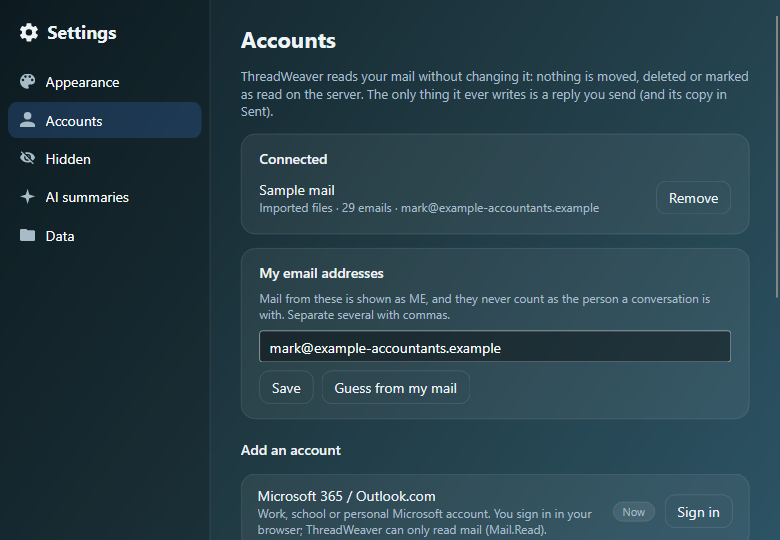
Your email addresses
ThreadWeaver needs to know which addresses are yours, so your messages show as ME and you’re never counted as “the person” a conversation is with. Each account’s own address is added automatically, and it also learns addresses you’ve sent from (anything in a Sent folder, and an address that writes to you under your own name, such as a work address forwarding home). Add any others, such as old addresses or aliases, under Settings ▸ Accounts ▸ My email addresses, separated by commas.
Microsoft accounts: signing in and permissions
Pressing Sign in opens Microsoft’s own sign-in page in your web browser. You sign in there, so ThreadWeaver never sees your Microsoft password. Microsoft then asks you to allow ThreadWeaver to:
- Read your mail (
Mail.Read), so it can fetch your emails and build conversations. Read only: it can’t change or delete anything. - Sign you in and read your profile (
User.Read), to show which account is connected (your name and email address). - Keep access (
offline_access), so you don’t have to sign in every time ThreadWeaver checks for mail.
The first time you send an email from a Microsoft account, you’re asked once more, in the browser, to allow Send mail as you (Mail.Send). If you never send from ThreadWeaver, it’s never asked for.
Work or school accounts: some organisations only allow apps an administrator has approved. If yours does, ThreadWeaver tells you so after sign-in; ask your IT team to approve ThreadWeaver (or to register their own copy and give you its client ID to enter under Settings ▸ Accounts).
If Microsoft later needs you to sign in again (after a password change, for example), the account shows Sign in again.
Reading conversations
- The left-hand list shows people, most recent first. Click one to see their conversations; click a conversation to open it on the right.
- A conversation is filed under the people on the From and To lines of its first email (not CC). Two or more people make a group, such as Bob & Paul.
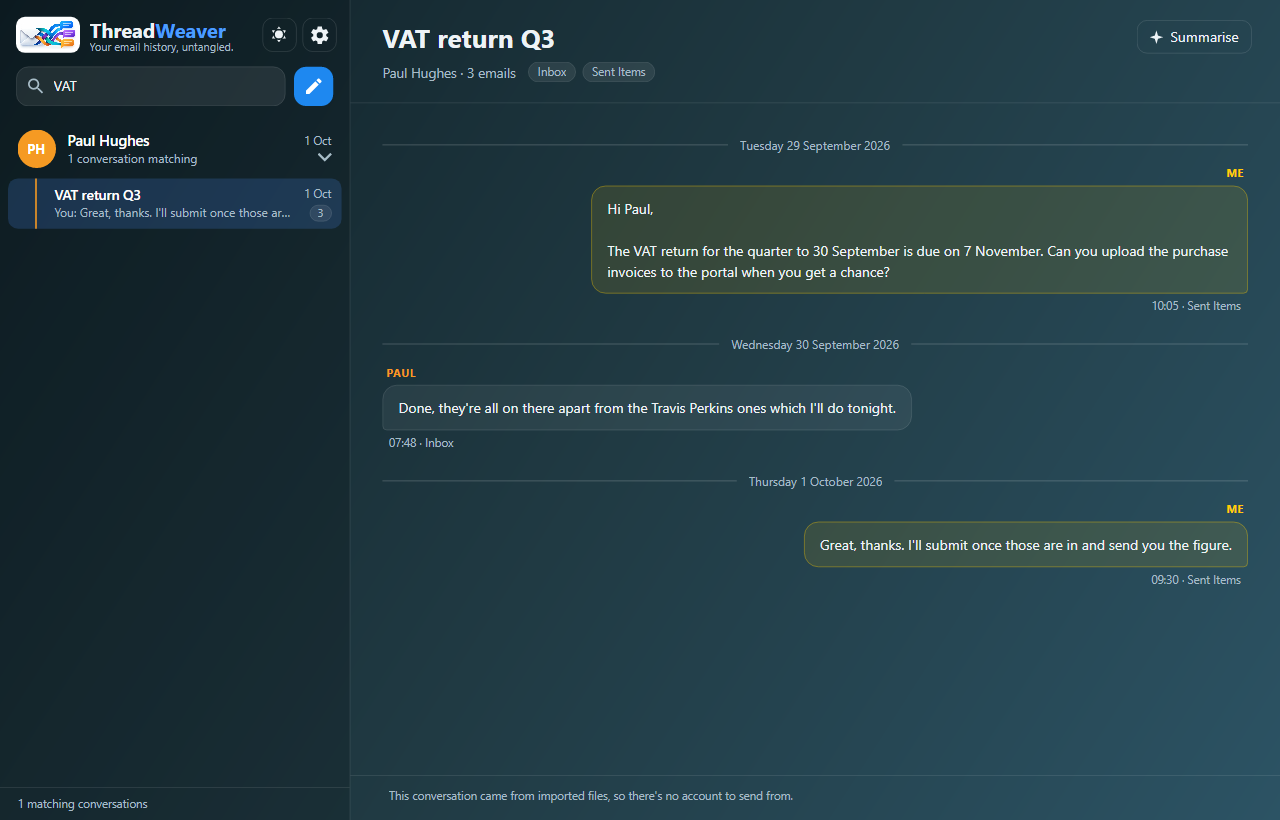
- Your messages are on the right, in gold; everyone else’s are on the left with their name above.
- Each bubble shows only the new part of that email. Hover over it to see what was taken off (quoted replies, signature, disclaimer). Cleaning learns from your mail, so it gets better as more mail comes in.
- A paperclip means the email had attachments. Press Download full message under it to fetch the original email; its attachments then appear under the paperclip, ready to open.
- Right-click a bubble to copy its text.
- With more than one account, each has its own section with a coloured header. Click the header to fold it away.
Searching
Type in the box at the top left. Results update as you type, across people’s names, addresses, subjects and the text of every email. Clear the box to go back to the full list.
Merging and splitting conversations
ThreadWeaver joins emails using the reply information inside them, and falls back to matching the subject and the people involved. When it gets it wrong:
- Two conversations that are really one: right-click one of them in the list ▸ Merge into another conversation… and pick the other.
- One conversation that drifted onto a new subject: right-click the first email of the new part ▸ Start a new conversation from here.
Both are remembered: emails you’ve split apart are never joined back together automatically.
Newsletters and hiding people
Mailing lists, newsletters and automated notifications (from no-reply addresses, for example) are gathered into one folded-away Newsletters & notifications row at the bottom of each account. If you’ve ever replied in one of those conversations, it stays with the people instead.
To hide someone completely, right-click them ▸ Hide, or hide everyone at their domain. Hidden people disappear from the list and from search, including future mail from them. Nothing is deleted: Settings ▸ Hidden lists them, with Unhide.
Replying and new conversations
- Replying: type in the box at the bottom of a conversation and press the send arrow (or Ctrl+Enter). It goes to the people the conversation is with, from the account it belongs to, with the conversation’s title as the subject, and joins the same thread in their mailbox.
- New conversation: press the blue pencil beside the search box. Choose the account to send from, type who it’s to (people you already have are suggested), a subject and your message.
- Sent emails are saved in your Sent folder as usual.
- Conversations from imported files can’t be replied to, as there’s no account to send from.
AI summaries (optional)
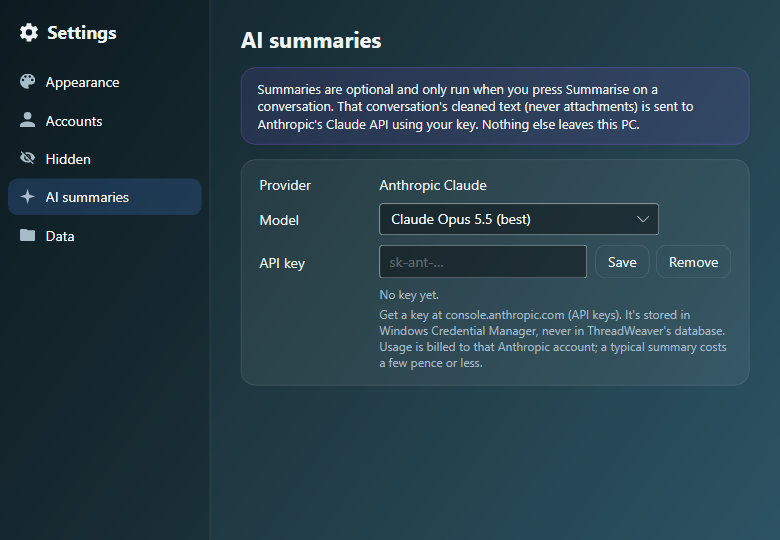
For long conversations, Summarise (top right of a conversation) writes a short summary at the top: what it’s about, what’s been agreed, what’s still open and who’s waiting on whom. It uses Anthropic’s Claude AI, with your own Anthropic API key:
- Create a key at console.anthropic.com (an Anthropic account with credit is needed; a summary typically costs a few pence or less).
- Paste it into Settings ▸ AI summaries and press Save.
Nothing is sent unless you press Summarise, and then only that conversation’s cleaned text (never attachments). Summaries are saved with the conversation; when new emails arrive it offers Update summary.
Settings
Open with the cog at the top left.
| Section | What’s there |
|---|---|
| Appearance | Dark or light theme (also the sun/moon button beside the cog). |
| Accounts | Add, edit, sync or remove accounts; import files; your email addresses; a Microsoft client ID for organisations that use their own. |
| Hidden | People and domains you’ve hidden, with Unhide. |
| AI summaries | The Claude model to use and your Anthropic API key. |
| Data | Where ThreadWeaver keeps its database, with a button to open the folder. |
Removing an account deletes its emails from ThreadWeaver only. Nothing is deleted from the mailbox itself.
Uninstalling and removing access
- Uninstall: Windows Settings ▸ Apps ▸ Installed apps, find ThreadWeaver, ⋯ ▸ Uninstall.
- Delete your local data: uninstalling leaves your ThreadWeaver database in place, in case you reinstall. To remove it, delete the folder
%LOCALAPPDATA%\ThreadWeaver(paste that into File Explorer’s address bar). It holds the stored emails, downloaded attachments and Microsoft sign-in tokens. - Remove saved passwords and keys: open Credential Manager from the Start menu ▸ Windows Credentials, and remove the entries starting
ThreadWeaver:. (Removing an account or key inside ThreadWeaver does this for you.) - Remove ThreadWeaver’s access to a Microsoft account:
- Personal (Outlook.com, Hotmail, Live): account.live.com/consent/Manage, select ThreadWeaver ▸ Remove these permissions.
- Work or school: myapps.microsoft.com ▸ your profile ▸ Manage app permissions (or ask your IT team).
- App passwords: if you created an app password for Gmail, iCloud, Yahoo or Fastmail, you can delete it in that account’s security settings.